


Can You Stream Windows 11 PC to Meta Quest Over USB?
Microsoft published its 18th Mixed Reality Link release of the year three days ago, and the notes read like a standard reliability pass: faster connections, smoother recovery from interrupted pairing, steadier audio. Nowhere in it does Microsoft describe a way to stream a Windows 11 PC to a Meta Quest headset over USB, according to the November 2026 release notes.
That distinction matters for anyone trying to connect a Meta Quest to a Windows 11 PC via USB rather than Wi-Fi. Microsoft's current documentation describes a network-based workflow, and the November release notes don't announce USB streaming. The update changes how that Wi-Fi connection behaves. It doesn't change what kind of connection it is.
Does Mixed Reality Link support USB streaming on Windows 11?
Not according to anything Microsoft or Meta has published. Every documented description of Mixed Reality Link's pairing flow, from Meta's original Horizon OS v81 announcement about a year ago to this week's release notes, describes a connection established through a PIN or QR code over a network, not a cable (Meta Quest Blog; Microsoft Community Hub).
That's narrower than saying USB support could never exist under some future configuration. It's simply what the current evidence shows. The confusion likely traces back to a different app built for a different job: Valve's Steam Link, designed for PC VR gaming rather than Windows desktop mirroring, picked up an early USB-C streaming mode about two months ago, and that's the feature actually doing what a lot of searches are looking for (Road to VR).
What Microsoft's November update actually fixes
The release, version 26.10270.1013.0 on PC and 10.0.19.2318 on the headset, targets reliability across several fronts: faster initial connections, reduced delays on some PCs, better repair behavior when the app fails to open, improved stability during disconnects and reconnects, and more consistent audio and microphone access (Microsoft Community Hub).
The most specific pairing fix addresses a narrow failure mode. If a PC loses its network connection mid-pairing, both the headset and PC apps now exit the pairing flow cleanly instead of leaving users stuck on the PIN screen, and they can simply retry once the connection returns, Microsoft said in the release notes.
That's a different issue from a complaint filed on Microsoft's community forum about seven weeks ago, in which a Quest 3S owner described the pairing QR code never appearing at all on a Windows 11 Pro 25H2 machine (Microsoft Community Hub discussion). Microsoft's response asked the user to submit a Feedback Hub report with reproduction steps rather than confirming a fix, and the November notes don't call out a missing-QR-code bug by name. Whether this update resolves that specific case isn't established by the available record.
Microsoft also fixed a bug that could block connecting to a PC immediately after opening the app, cut unnecessary processing during repeated connection checks, and corrected outdated status indicators that could appear after removing and re-pairing a PC (Microsoft Community Hub). Microsoft says these updates are rolling out this week to Mixed Reality Link on PC and the Windows App on Meta Quest, so anyone not seeing the fixes yet should check the app version against the numbers above.
For persistent connection errors after updating, Tom's Guide's testing from around a year ago found that pairing failures often traced back to the headset and PC sitting on different Wi-Fi bands, and that restarting both devices cleared up most issues, including a green-screen glitch neither Microsoft nor Meta had documented at the time (Tom's Guide). That's hands-on troubleshooting rather than an official Microsoft instruction, but it's the closest thing available to a workaround.
How Mixed Reality Link streams a Windows 11 PC to Meta Quest today
Setup hasn't changed since the app left preview. Install Mixed Reality Link on a Windows 11 PC, then look at the keyboard and tap "Pair," or scan a QR code to connect, according to both The Verge and Meta's own announcement. No cable appears anywhere in that documented workflow.
Confirmed hardware support covers Quest 3 and Quest 3S connecting to Windows 11 and Windows 365 PCs. Meta switched on Remote Desktop pairing by default as part of its Horizon OS v81 update about a year ago, which is what pushed Mixed Reality Link from limited preview into broad availability (Meta Quest Blog).
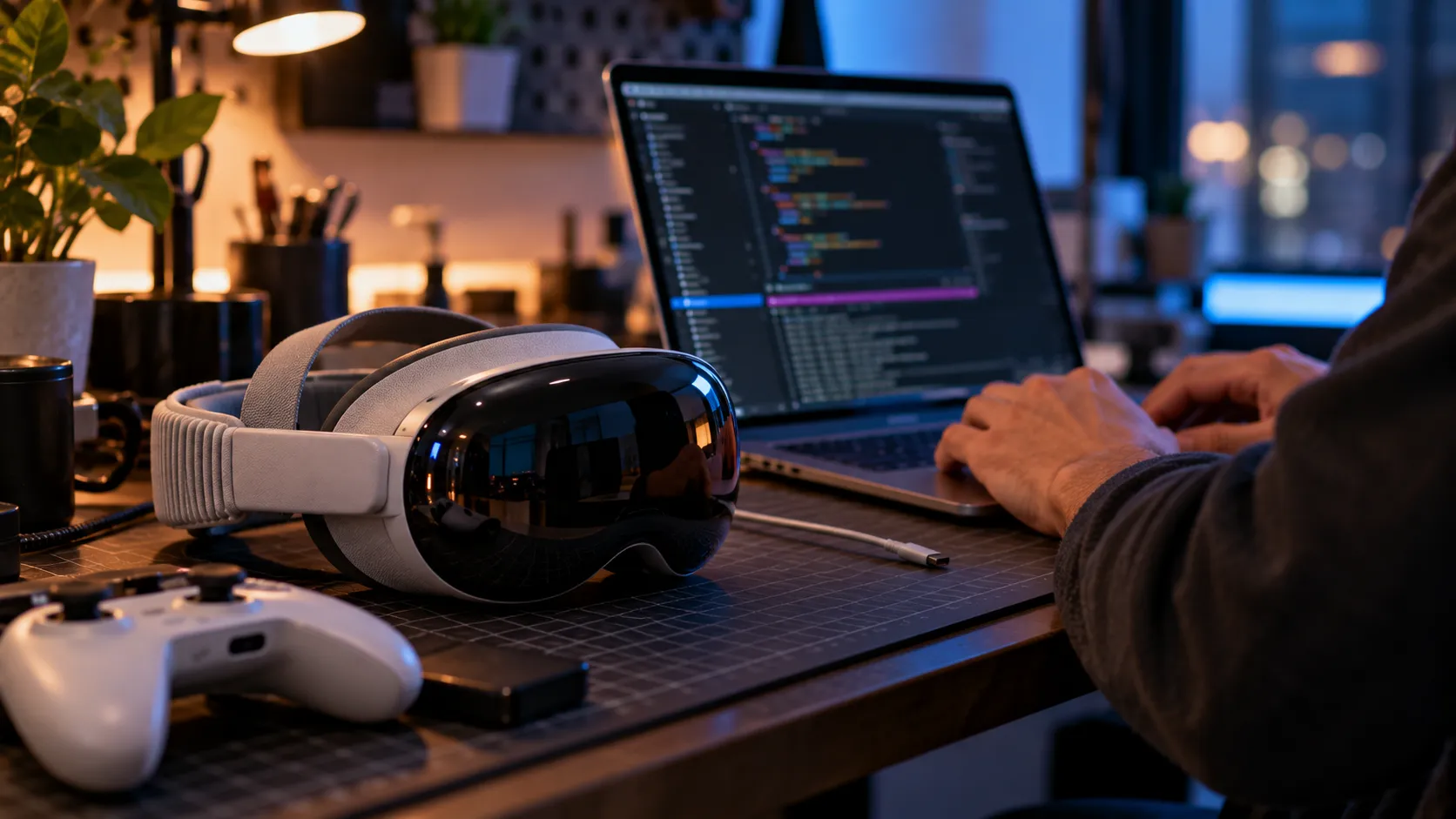
Once paired, the app projects multiple high-resolution virtual monitors, or a single curved 32:9 ultrawide display, with as many as 12 apps open at once, The Verge reported around the time of that wider rollout. Tom's Guide's testing described the tracking as stable enough to anchor screens in fixed positions and the latency as low enough for split-screen productivity work, calling it "great, but not quite great enough for split-second gameplay," a single tester's assessment rather than an official spec (Tom's Guide). That framing lines up with how both companies pitch the app: a Windows desktop tool, not a PC VR streaming solution.
Mixed Reality Link vs. Steam Link: two apps solving different problems
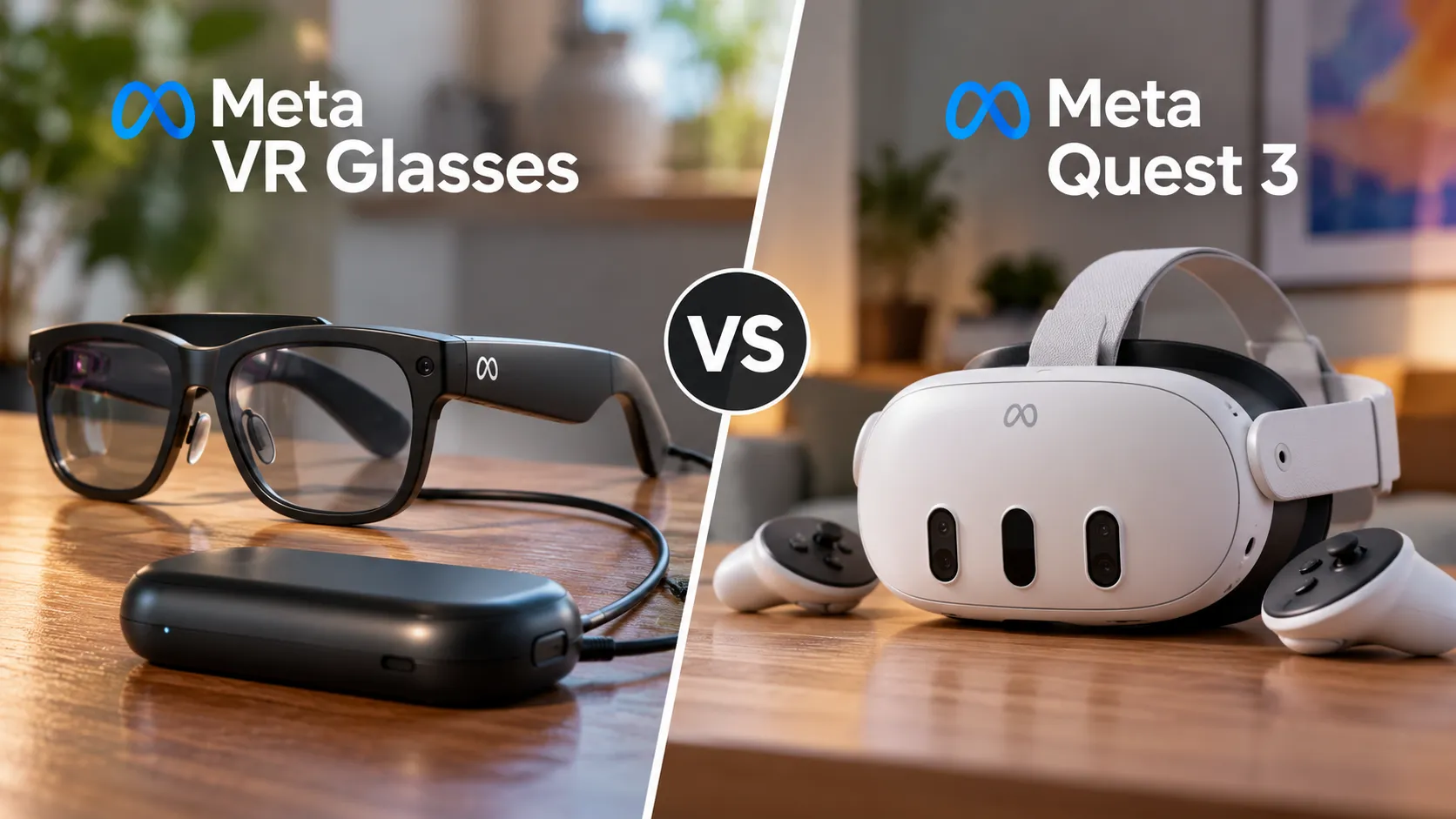
The two get confused because they both connect a Windows PC to a Meta Quest headset, but they're built for opposite use cases. Mixed Reality Link mirrors a Windows desktop into virtual monitors over Wi-Fi, documented for Quest 3 and Quest 3S, with no wired option in anything Microsoft or Meta has published (Meta Quest Blog). Steam Link streams PC VR games from a gaming PC to the headset, and it's the one that just picked up a USB mode.
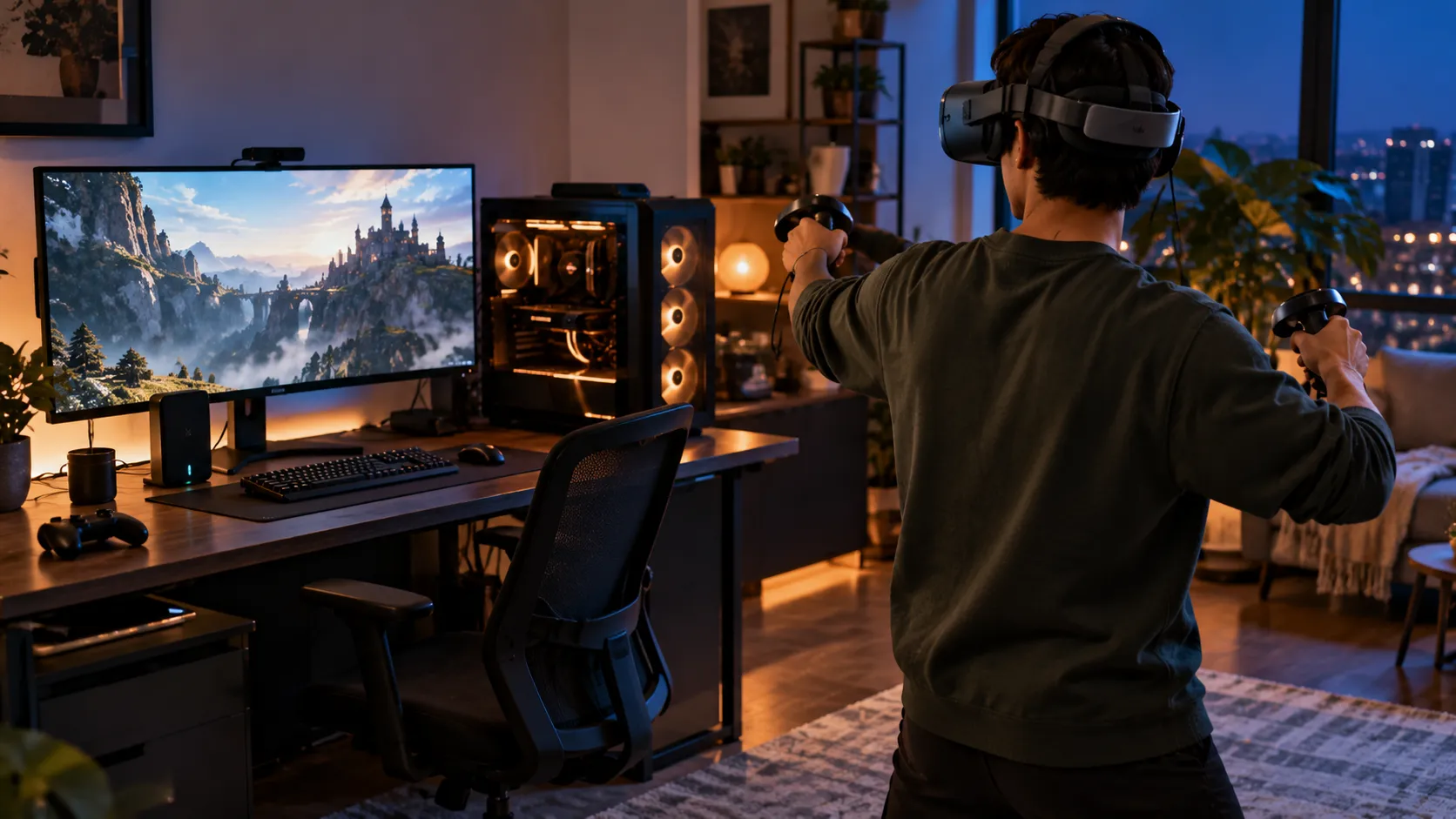
Valve's Steam Link app added initial USB-C streaming support in its 2.17.8 public beta update about two months ago, letting PC VR games run without relying on Wi-Fi (Road to VR). It's an early-stage feature, not a default setting. The reported setup requires opting into three separate beta channels: the Quest app's public beta on the Horizon Store, the SteamVR beta branch, and the Steam Client Beta.
Valve hasn't specified an exact cable requirement. Road to VR's suggestion of a USB 3.0-or-better cable at least five meters long is the outlet's own extrapolation from Meta's unrelated Link Cable guidance, not a Valve recommendation.
Steam Link's general PC requirements list an NVIDIA GTX 970-class GPU or better, Windows 10 or newer, and support for Quest 2, Quest 3, or Quest Pro (Road to VR). It's unconfirmed whether those figures describe the new USB beta specifically or Steam Link's existing Wi-Fi streaming mode, and Quest 3S doesn't appear anywhere in that hardware list, so owners of that headset should verify support before enrolling in the betas.
What to check before switching apps
Nothing in Microsoft's November release adds USB support to Mixed Reality Link, and the app's documented workflow remains Wi-Fi-based. Readers trying to connect a Meta Quest to a Windows 11 PC via USB for desktop mirroring won't find that option here today.
Wired PC streaming for Meta Quest currently lives in Steam Link's public beta, built for PC VR gaming rather than productivity, and gated behind three separate beta enrollments with compatibility details still thin. Anyone choosing between the two should match the app to the job: Mixed Reality Link for a Windows desktop in headset, Steam Link's beta for a cabled PC VR session, and neither one yet for a mainstream, officially documented USB desktop stream.

Comments
Be the first, drop a comment!