



Google Translate's Live Translate Android XR upgrade could give future Android XR glasses users a choice: translate only the person facing them, or every voice within earshot.
Code inside version 10.32.66 of the Google Translate app describes a "Listening area" setting built specifically for Android XR glasses, according to an Android Authority teardown published August 25.
The setting exists only in code strings, with no screenshots, working implementation, or confirmation from Google that it will ship as described.
Still, the labels are specific enough to sketch two different approaches to a problem wearable microphones face: deciding which nearby speech the user actually wants translated.
The work has now surfaced across two Android Authority teardowns, one from November 2025 and one from August 25, 2026. Google itself demoed live two-person translation on Android XR glasses at I/O 2025, calling it "subtitles for the real world" in a company blog post.
The Android XR Live Translate listening-area controls
The latest find comes from version 10.32.66 of the Google Translate Android app. Buried in its Translation settings is a string labeled "Listening area (Glasses only)."
The label suggests the control is meant for Android XR glasses, not phones or other devices running the same app.
Underneath that header sit two named options:
Front only: "Translate speech directly in front of you."
Surrounding area: "Translate all speech in the nearby area."
Together, the two options describe a choice between speech directly ahead of the wearer and speech anywhere nearby, nothing more elaborate than that.
Android Authority found only the labels and descriptions in code, with no visuals or functioning feature available to test. A previous teardown found a general "Glasses" entry in Translate's device picker; these newer strings describe two distinct listening behaviors rather than one broad output option.
Why whose voice to translate is the harder problem
Android Authority offers an informed reading of how the two modes might work, without confirming implementation details.
Surrounding-area mode could use the microphone array available on Android XR glasses, the outlet suggests, while Front only appears tailored for one-on-one exchanges and could help focus on the speaker in front of the wearer.
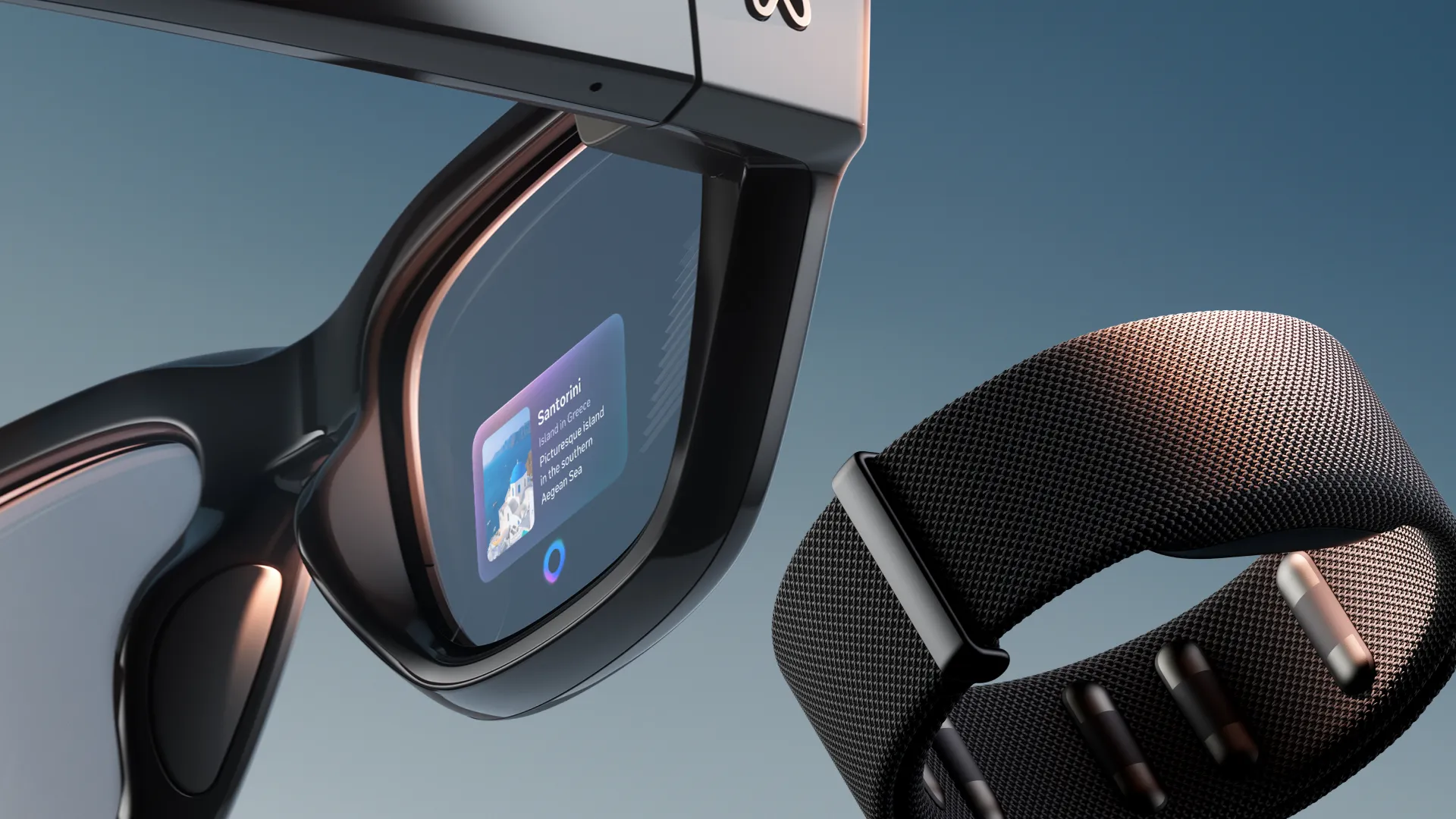
Google has already described Android XR glasses as using cameras, microphones, and speakers while working with a connected phone. Some models will be audio-only, while separate display glasses will add an in-lens display for private information such as navigation and translation captions.
That makes microphone targeting particularly important. In a busy room, translating every nearby voice is a very different task from focusing on the person directly ahead.
On a foldable Pixel phone, Google's Dual Screen mode puts translations on both the inside and outside screens. Google's support documentation says Google Translate Dual Screen works on Pixel Fold models from the first generation onward, while Dual Screen Live Transcribe is specifically listed for Pixel Fold, Pixel 9 Pro Fold, Pixel 10 Pro Fold, and Pixel 11 Pro Fold.
Android XR glasses use a different interaction model. Google's display glasses can privately show information in the wearer's line of sight, while its first audio glasses won't have an in-lens display.
The code strings don't explain whether Surrounding area can separate overlapping conversations or how aggressively Front only would reject voices from the side or behind. Those questions require a working implementation.
Some earlier Live Translate changes have already shipped
The Listening area strings follow an Android Authority teardown from November 2025 that uncovered several other Live Translate changes.
That earlier code included a device picker with Glasses, Headphones, Off, and This device, along with separate audio-routing controls and strings for translating speech in the background.
Some of those ideas are no longer merely unreleased code.
Google's current Live Translate support page says users can choose text-only output, speakers, or headphones, and that a Live Translate session continues when they switch apps, minimize Translate, or lock the screen.
That means the earlier teardown correctly foreshadowed background translation and expanded audio-output controls, while the glasses-specific device option and new Listening area modes remain unconfirmed.
Live Translate launched in the Translate app in August 2025, enabling real-time back-and-forth conversations in more than 70 languages. Google later expanded the system with Gemini-powered speech-to-speech translation and, in June 2026, introduced Gemini 3.5 Live Translate for near-real-time translation across more than 70 languages.
What's actually available now, and what isn't
The Samsung Galaxy XR remains the only commercially available Android XR device, according to Android Authority. The new Translate setting, however, is explicitly labeled "Glasses only."
No shipping Android XR glasses currently expose the Listening area setting.
That hardware gap won't last indefinitely. At Google I/O 2026, Google announced that its first Android XR intelligent eyewear will launch this fall in partnership with Samsung, Gentle Monster, and Warby Parker.
The first products will be audio glasses that provide spoken assistance without a display. Google has separately outlined display glasses that can show private information such as navigation and translation captions in the wearer's line of sight.
Google hasn't said whether either type will support the Listening area control found in Translate's code.
The current teardown therefore points to software being prepared for a hardware category that is scheduled to reach consumers soon, but it doesn't establish which glasses will receive the feature or whether it will be ready at launch.
What comes next
The code strings and the two teardowns behind them show that Google is continuing to adapt Live Translate for Android XR glasses, not that the Listening area feature is scheduled to ship.
Plenty remains unanswered. Android Authority's reporting doesn't establish how well Surrounding area would separate overlapping speakers, what effect either mode might have on latency, or how Google would handle privacy and consent when a mode is designed to listen for speech throughout the surrounding area.
Those are questions raised by the proposed behavior, not documented features.
The most useful next signal will be whether Listening area appears in a public Translate release and whether Google identifies compatible Android XR glasses.
With Google's first audio glasses scheduled for this fall, the hardware is no longer an indefinite future concept. The unresolved part is whether this particular Translate control will be ready when those glasses arrive.






Comments
Be the first, drop a comment!