


How to Use XR Blocks Gem with Gemini for XR Prototyping
This guide walks through how to use XR Blocks Gem with Gemini for XR prototyping, from configuring the Gem to sharing a finished prototype as a web link. By the end, you'll know how to set up the toolchain, build an interactive 3D scene through plain-language prompts, understand exactly what the output is, and make a clear-eyed call on whether this workflow fits your current project stage.
One benchmark sets the right expectations upfront. A senior XR engineer spent a full day building a detailed 3D volcanic world from scratch. Gemini Canvas completed the equivalent task in under a minute, per both SaveDelete and Developer Tech, both reporting in February 2026. That compression applies to a specific phase: scene assembly, environment generation, early interaction prototyping. It does not touch what comes after debugging, optimization, maintainability, deployment. Know which phase you're in before deciding this tool belongs in your stack.
XR Blocks was introduced at ACM UIST 2025 as an open-source, cross-platform WebXR and AI framework, per the Google Research Blog in October 2025. Google connected it to Gemini Canvas and Android XR in February 2026. That shift matters because XR Blocks is no longer just a research demo; there is now a live repo, a recent release, and a browser-based path to test it. The repo shipped v0.10.0 on February 18, 2026, with active commits as recently as three weeks ago, per the GitHub repository. The performance claims come primarily from Google. Independent benchmarks don't exist yet. That matters and is worth naming upfront.
Prerequisites: what you need before you open Gemini
Check these before starting. Missing any one of them stops the workflow at different points.
Hardware
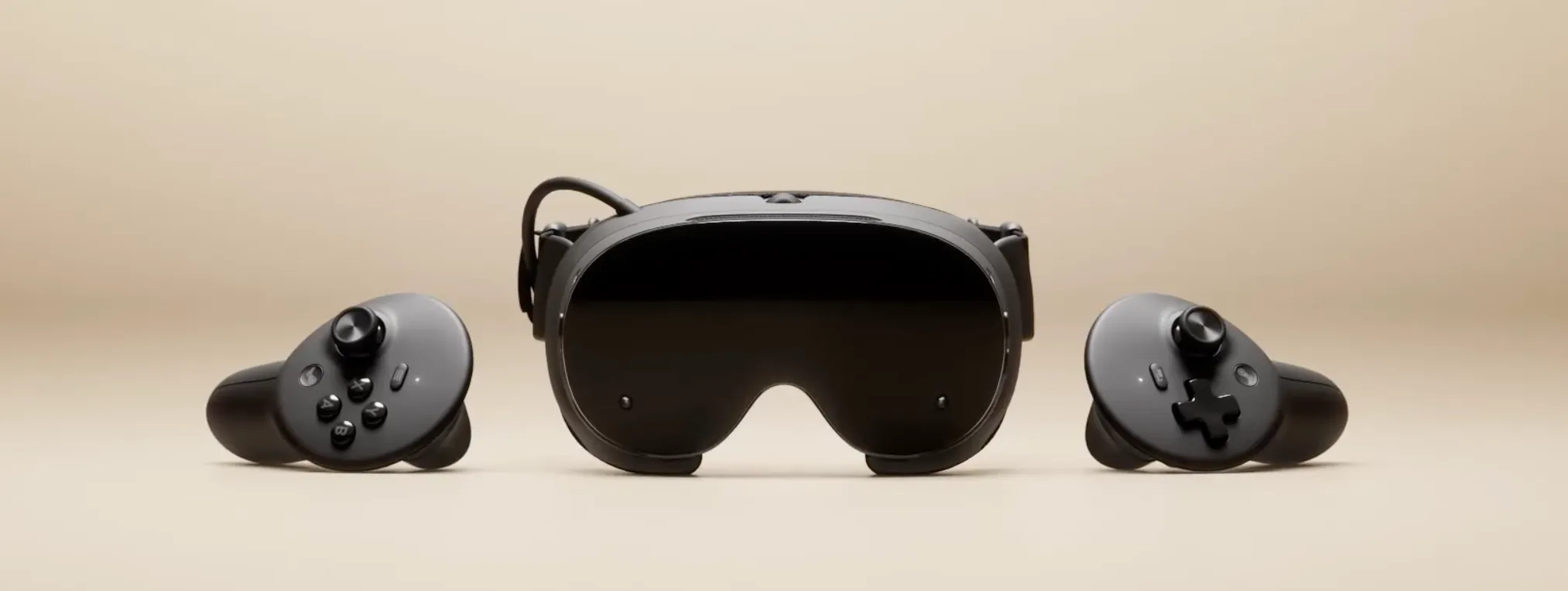
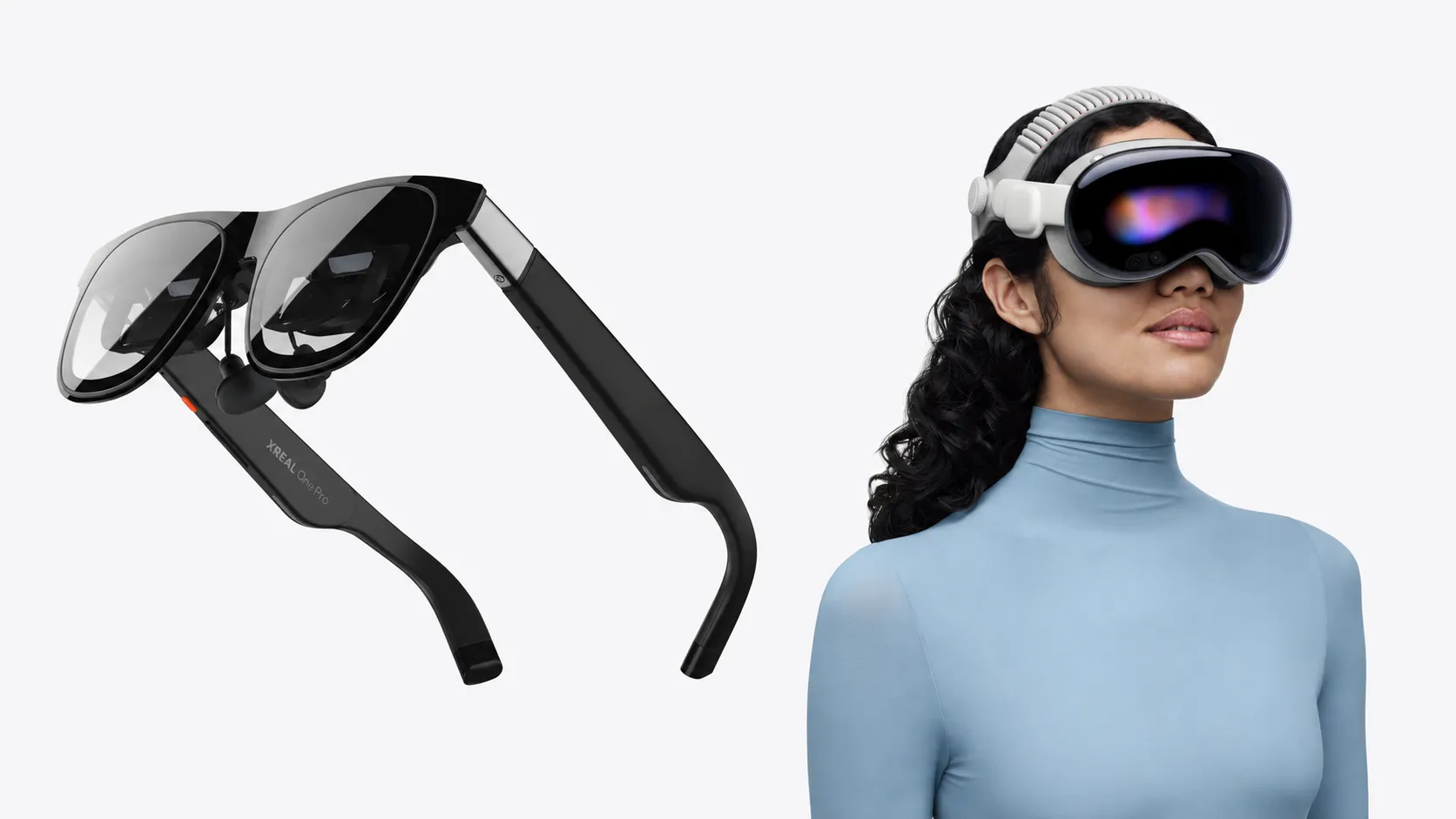
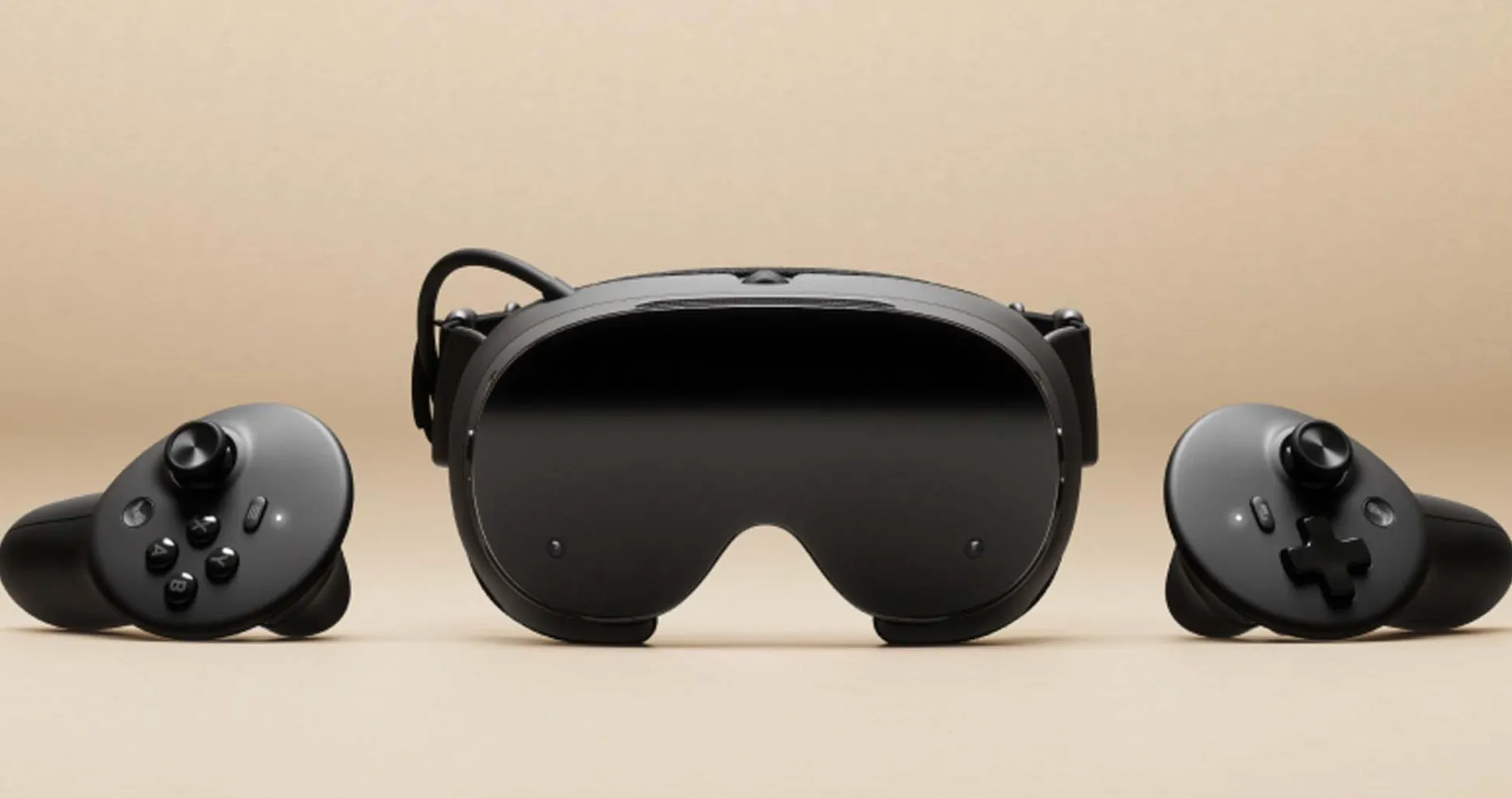
A Samsung Galaxy XR headset is required for on-device immersive validation not for the basic prototyping loop. At $1,799, it's enterprise-grade and a genuine access floor, per Digital Applied.
The default starting path for most readers is the desktop simulator. XR Blocks ships with a built-in simulator for Chrome that mirrors headset behavior: clicks substitute for pinches, and the scene renders in-browser, per the GitHub repo. Run the full prompt-to-prototype loop there. Reserve the headset for spatial validation once the concept holds up.
Software
- Gemini 3 Pro access. The XR Blocks Gem relies on Gemini's multimodal understanding and image-generation capabilities, neither of which is available on free-tier access, per the Google Developers Blog.
- Chrome v136+ on the Galaxy XR device, or desktop Chrome for simulator work. XR Blocks targets Chrome v136+ with WebXR support and is built on Three.js, per the GitHub repo.
One operational note before starting. Certain XR Blocks capabilities hand tracking, camera access, depth sensing trigger browser permission requests. Denied permissions disable the affected features entirely. Depth sensing and gesture recognition via WebXR and LiteRT process all data locally on-device. AI features, including Gemini Live and Gemini Flash, route data to Gemini's servers, per the GitHub repo. That distinction matters for enterprise and regulated contexts. For now: never commit API keys to source control, and never expose them client-side in production builds.
XR Blocks Gem tutorial: build your first prototype in Gemini Canvas
Step 1: configure the XR Blocks Gem
The XR Blocks Gem is a Gemini configuration a persistent system setup that tells Gemini how to behave as an XR developer. It specifies which rendering libraries to use, how to interpret scene descriptions spatially, and what aesthetic standard to apply to generated textures and geometry. Getting this right is what separates useful output from generic 3D.
Option A: use the pre-built Gem. Navigate to gemini.google.com and locate the XR Blocks Gem in the Gems directory. Open it. This is the fastest path to a first prototype and the right choice for initial exploration.
Option B: build a custom Gem from the XR Blocks ultra-prompt. Download the ultra-prompt file from the XR Blocks repository. Create a new Gem in the Gemini web interface, upload the ultra-prompt file, and add a system description. Google's suggested framing: "You are a creative and resourceful WebXR developer with superb aesthetic taste and technical execution" followed by any project-specific context, per the Google Developers Blog and Developer Tech.
That persona isn't decorative. It's the mechanism that enables Gemini to invoke image-generation tools, apply polished 3D textures, and render interactive WebGL components rather than produce bare placeholder geometry, per SaveDelete. The ultra-prompt is long and highly structured by design Gemini Pro handles complex, context-rich system prompts well. Don't strip it down to feel cleaner. The specificity is doing functional work.
Start with Option A. Build a custom Gem once you've completed a first prototype and have clearer requirements for your project's spatial and visual needs.
Step 2: launch Canvas and build your first prototype
Open Gemini in Chrome on the Galaxy XR headset or in the desktop simulator start a new chat with your XR Gem, and select Canvas from the interface. This is where generation happens.
The following walkthrough uses a single example, an interactive nature environment, to show the full loop clearly.
1. Describe the scene. Send a scene-level prompt: "Create a forest environment with soft morning light." Gemini generates the scene in real time: WebGL rendering, Three.js geometry, texture generation. Canvas updates immediately as each instruction is processed, per Developer Tech.
2. Add an interactive object. Layer a specific element on top: "Add a dandelion that reacts when I touch it seeds scatter on contact." The Gem interprets hand-tracking or click events depending on whether you're on the headset or desktop simulator, then generates the corresponding interaction logic. XR Blocks supports gesture events including pinch, open-palm, and fist detection, which Gemini can generate code for from natural-language descriptions, per the GitHub repo.
3. Check the result and iterate. If the physics look wrong or the timing is off, prompt again: "The seeds should hang in the air for two seconds before drifting down." Prompts compound simple ideas layer into complexity without requiring a restart, per the Google Developers Blog.
4. Enter XR (headset only). When the scene is ready on the Galaxy XR device, a button appears in Canvas: Enter XR. Tap it. The WebGL scene converts to a WebXR experience via standard WebXR APIs. Google's internal team saw this transition firsthand when a blood-cell biology simulation went from what they described as "a living textbook illustration" to a walkable immersive environment at sub-cellular scale, per the Google Developers Blog.
5. Keep building without leaving the session. Prompt Gemini to embed Gemini Live within the active experience. This enables voice-driven iteration describe changes and see them applied without exiting the immersive session, per Developer Tech.
6. Share the result. When the prototype is worth reviewing, it becomes a shareable web link. No app packaging, no distribution pipeline, no compiled binary, per Developer Tech. Send the URL. The recipient opens it in Chrome.
Other starting prompts worth running as calibration tests, per the Google Developers Blog:
- "Make a pen that draws rainbows in 3D"
- "Make bubbles that pop when I touch them"
- "Make an origami bird that lands on my hand and flies away when I move"
These test physics, interactivity, and hand tracking without requiring a complex scene already in place. Run them before attempting anything more ambitious.
What the workflow actually produces
This is worth spelling out clearly, because the output isn't always what people expect.
What Canvas generates is a WebGL scene built on Three.js, running on standard WebXR APIs. The XR Blocks runtime handles the layer between your prompts and the rendered experience managing hand-tracking events, gesture detection, and depth-sensing calls where applicable. The scene code itself is AI-generated TypeScript/JavaScript, per the GitHub repo.
The practical implications: the generated code is inspectable. It runs in Chrome, which means standard browser developer tools work. What that code looks like at scale whether it's maintainable, whether it follows defensible patterns, whether it degrades gracefully those questions don't have documented answers yet. Google hasn't published guidance on production handoff from Canvas-generated output, and independent assessments don't exist as of this writing.
Two other things to be clear about. The open standards at the rendering layer (WebXR, Three.js) do reduce lock-in for the scene and runtime. They don't reduce it at the generation layer. Generating that scene in the first place requires Gemini 3 Pro, Chrome, and the Android XR ecosystem. Switching generation tools would mean starting the scene over. That's the actual vendor dependency, and it's worth understanding before committing to this workflow for anything beyond concept validation.
The desktop simulator is useful but not a full substitute for headset testing. Spatial scale, hand-tracking latency, and depth perception all behave differently in a physical headset. If spatial feel is central to the concept being validated, plan for at least one headset session before presenting the prototype to stakeholders.
What this workflow is good for and where it stops
Use this now if:
- You're validating a spatial interaction concept before writing a spec or requesting engineering resources
- You need a demo or stakeholder prototype within hours, not weeks
- You want to explore WebXR interaction patterns gestures, environmental triggers, object behaviors without setting up a full engine pipeline
- A shareable web link is the right delivery format for your current stage
Don't lean on this yet if:
- You need maintainable, auditable, or production-grade code as the output
- Your use case involves regulated data. AI features in XR Blocks route content to Gemini's servers; only non-AI spatial features depth sensing and gesture recognition via WebXR and LiteRT run entirely on-device, per the GitHub repo
- You need vendor-neutral infrastructure. Open standards reduce lock-in at the scene and runtime layer, but not at the generation layer, where the workflow depends on Gemini 3 Pro, Chrome, Android XR, and the Galaxy XR headset, per Developer Tech
The open-source foundation gives this project better odds than most Google lab experiments. Apache 2.0 license, 20 contributors, 14 releases since September 2025 all documented in the GitHub repo. That's a repo someone is actually maintaining, not a paper demo left to decay. Questions about frame rate stability, code quality, debugging workflow, and production handoff still don't have public answers. The developers building on this over the next six months will generate them.
For teams inside the right stack Gemini Pro access, Chrome, willingness to work within the Android XR ecosystem this is a fast and well-documented path to concept validation. The speed claim is documented, the framework is actively maintained, and the desktop simulator lowers the barrier to entry well below the $1,799 headset price.
Start with the simulator. The headset is the finishing step, not the starting one.



Comments
Be the first, drop a comment!