


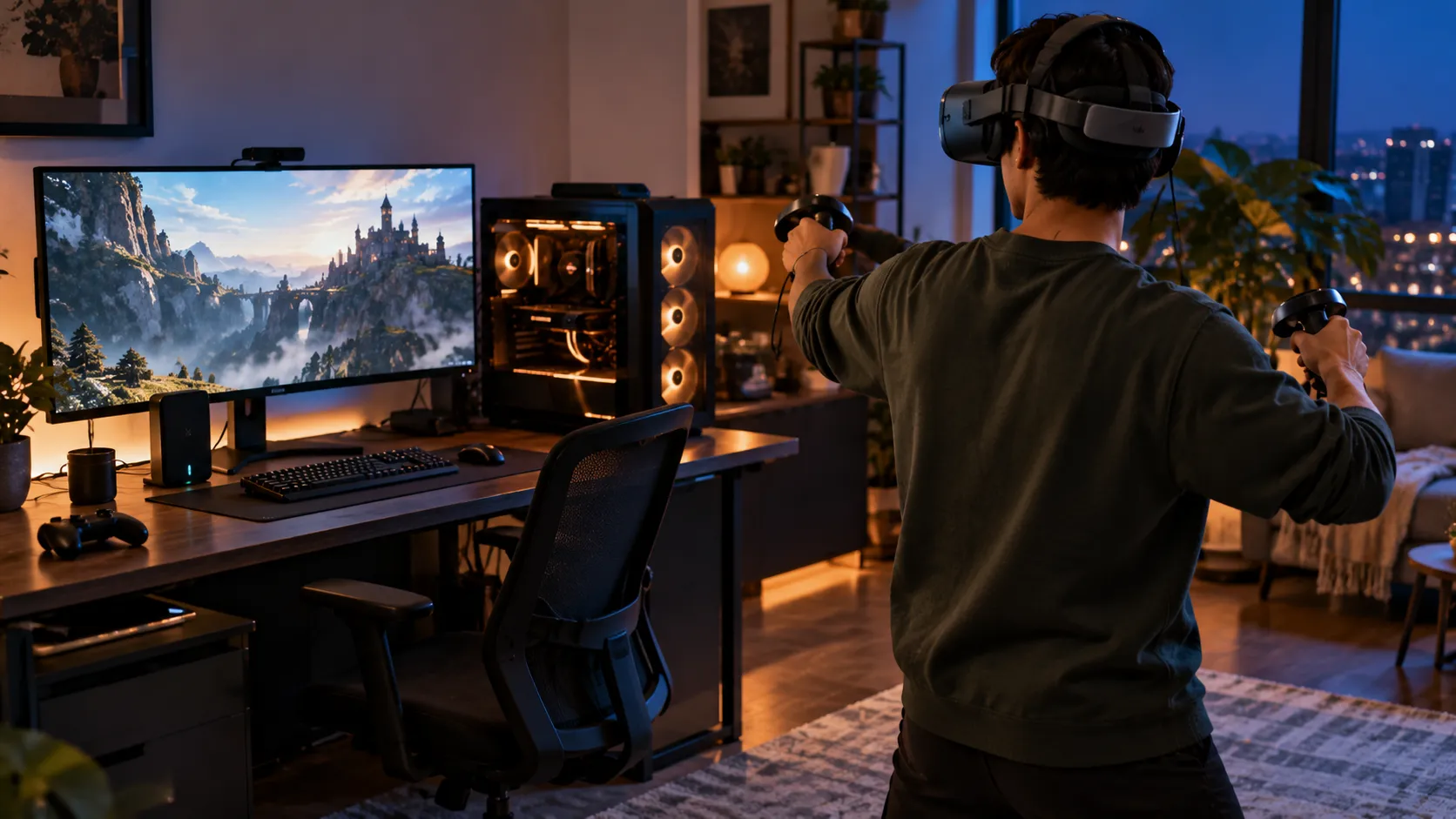
Meta Quest users often settle for the basic experience, missing out on powerful customizations and features that could dramatically enhance their VR sessions. While the headset works well out of the box, diving deeper into its settings and capabilities reveals a wealth of optimization opportunities that can transform how you interact with virtual worlds.
Understanding these advanced techniques isn't just about showing off technical knowledge—it's about maximizing the substantial investment you've made in VR technology. From performance tweaks that eliminate lag to hidden features that streamline your workflow, these optimizations can mean the difference between a frustrating VR experience and one that feels truly immersive.
What I've discovered after months of systematic testing is that most users never venture beyond the basic settings menu, leaving significant performance and functionality gains on the table. Let me walk you through the modifications that actually move the needle on your VR experience.
Performance optimization that actually makes a difference
The Meta Quest's default settings often balance performance with battery life, but several adjustments can unlock significantly better visual fidelity and responsiveness. Developer options are accessible via developer mode in the Meta Quest mobile app. Unlocking these developer controls transforms your Quest from a consumer device into a performance tuning platform.
Refresh rate modifications represent one of the most impactful changes you can make. While the standard 72Hz works for casual use, bumping up to 120Hz on supported models and apps creates noticeably smoother motion and can reduce perceived motion discomfort for some users. The trade-off comes in battery life, but the improved experience often justifies the shorter sessions.
The difference in visual smoothness isn't subtle—moving from 72Hz to 90Hz delivers the kind of clarity that makes your brain stop working overtime to process choppy visual information. This translates directly to reduced eye strain and fatigue during extended VR sessions, particularly in fast-paced games or applications with lots of head movement.
Memory management through the developer console offers another performance boost. Clearing cached data and managing background processes can free up resources for demanding applications, particularly useful when switching between multiple VR experiences during extended play sessions. What's particularly interesting is how much system overhead accumulates from apps that didn't close properly, cached textures from previous sessions, and system processes that remain active long after you've finished using specific features.
PRO TIP: Start with refresh rate adjustments before diving into memory management. The visual improvement is immediately noticeable and helps you establish a baseline for evaluating other performance modifications.
Privacy and security tweaks you probably missed
Meta's data collection extends far beyond what's immediately obvious, but several settings can help users regain control over their information. The privacy dashboard, buried several layers deep in account settings, reveals tracking permissions that many users unknowingly accepted during initial setup.
Understanding what data gets collected becomes crucial when you're spending hours in VR environments where traditional privacy awareness might be relaxed. Unlike smartphone apps where you might glance at permission requests, VR applications often request broad access during immersive experiences when you're less likely to scrutinize the details.
Voice command recording may be enabled depending on settings and region. Disabling this feature prevents Meta from storing audio clips, though it does limit some voice-activated functionality. The trade-off between convenience and privacy becomes a personal choice once users understand what data is being collected.
The scope of voice recording extends beyond intentional commands—the system may capture audio when voice features are active, creating an accumulating record of your environment and usage patterns. These fragments might seem insignificant individually, but they build a surprisingly detailed profile over time.
Location tracking for VR experiences can be granularly controlled through individual app permissions. While some games require positional data for proper functioning, many applications request location access unnecessarily, making selective permission management worthwhile for privacy-conscious users. The pattern of unnecessary location requests reveals how many developers default to requesting maximum permissions rather than implementing privacy-conscious data handling.
Essential apps and tools beyond the official store
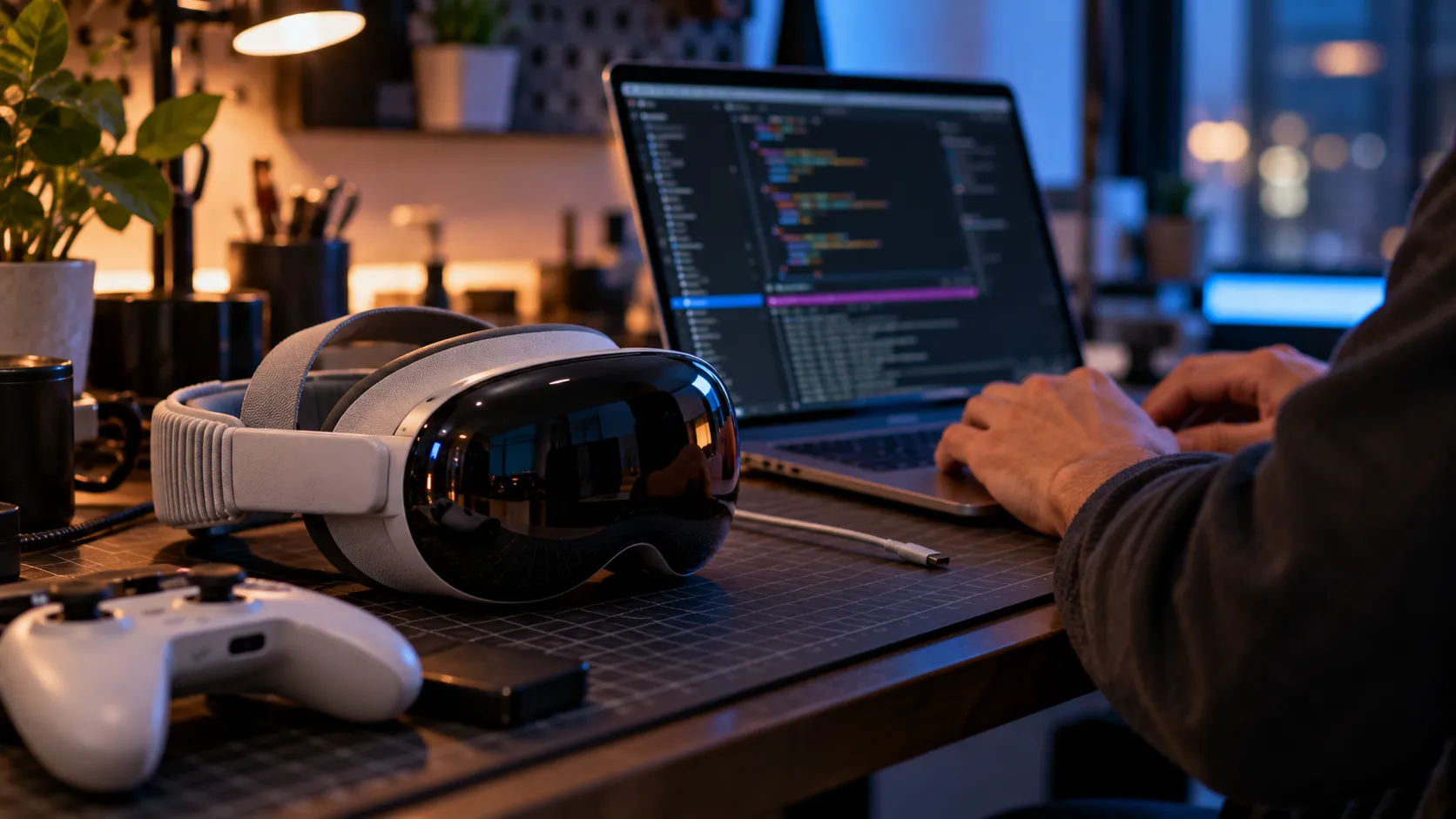
Sideloading applications opens up possibilities that the official Meta Store doesn't offer, from enhanced media players to productivity tools designed specifically for VR environments. The process requires enabling developer mode and using tools like SideQuest, but it dramatically expands your headset's capabilities.
Beyond the convenience of additional apps, sideloading reveals the full potential of your Quest hardware—capabilities that Meta's curated store approach necessarily limits. The community-developed applications often solve specific use cases that don't fit into Meta's broader platform strategy but represent genuine improvements for particular user needs.
Alternative VR launchers can replace the default Meta interface with more customizable options. These third-party environments often include better file management, enhanced social features, and visual themes that better match individual preferences than the standard Quest home environment.
Custom launchers demonstrate how much functionality remains locked behind Meta's interface design choices. Features like folder organization, window resizing, and custom shortcuts become available, making the default home environment feel restrictive in comparison. The productivity gains from better file management alone justify the setup effort for users who regularly access local content.
Emulation software transforms the Quest into a portable retro gaming powerhouse. Classic console emulators, when properly configured, can provide nostalgic gaming experiences with the added immersion of VR scaling and positioning controls. The ability to play classic games on virtual large-screen displays while positioned in recreated nostalgic environments adds entirely new dimensions to familiar content.
Pro tip: Always research sideloaded apps thoroughly and stick to well-established community sources. While sideloading expands possibilities, it also bypasses Meta's security screening, making careful app selection essential.
Advanced troubleshooting when things go wrong
Connection issues between the Quest and PC for Link functionality often stem from USB power management rather than cable problems. Windows power settings frequently throttle USB ports to save energy, causing intermittent disconnections that appear to be hardware failures but are actually software-related.
This troubleshooting insight saves both money and frustration—before replacing cables or assuming hardware failure, the root cause often lies in Windows' aggressive power management attempting to save minimal energy by disrupting USB connectivity at unpredictable intervals.
Guardian boundary problems can usually be resolved through environmental lighting adjustments rather than constantly redrawing boundaries. The Quest's inside-out tracking relies heavily on visual landmarks, so ensuring adequate lighting and removing reflective surfaces often eliminates tracking glitches more effectively than boundary resets.
The computer vision system performing real-time environmental mapping requires consistent visual reference points to maintain accurate tracking. When users experience boundary drift or tracking loss, the solution typically involves optimizing the visual environment rather than repeatedly reconfiguring software settings. Reflective surfaces like mirrors, glossy furniture, or picture frames under glass can completely disrupt the tracking algorithms' ability to maintain consistent spatial awareness.
Audio desynchronization, particularly noticeable during media playback, typically results from codec conflicts rather than hardware issues. Adjusting audio buffer settings through developer options or switching to different media formats often resolves these timing problems without requiring factory resets. Certain video codecs interact poorly with the Quest's audio processing pipeline, creating progressive lip-sync delays that worsen over extended viewing sessions.
Where do we go from here?
These optimization techniques represent just the beginning of what's possible with thoughtful Quest customization. The VR ecosystem continues evolving rapidly, with new tools and techniques emerging regularly from both official updates and community development efforts.
The key lies in approaching these modifications systematically rather than implementing everything at once. Start with one or two changes that address your specific pain points, then gradually explore additional optimizations as you become more comfortable with advanced settings. Attempting to implement multiple modifications simultaneously often leads to troubleshooting conflicts rather than enjoying improved performance.
Remember that every modification involves trade-offs—whether between performance and battery life, convenience and privacy, or stability and features. The goal isn't to implement every possible tweak, but to create a personalized VR experience that aligns with your specific needs and usage patterns.
The exciting aspect of Quest optimization is how much improvement potential continues to exist. Meta's regular platform updates add new capabilities while the community discovers innovative ways to extend hardware capabilities beyond their intended limits. Your Quest today offers more possibilities than it did six months ago, and this expansion will continue—provided you're willing to explore beyond default configurations and experiment with what's truly achievable.




Comments
Be the first, drop a comment!